# Mac

在将代理集成到Mac之前，請確保您已經正確設置代理，以保障代理服務能夠正常運行。

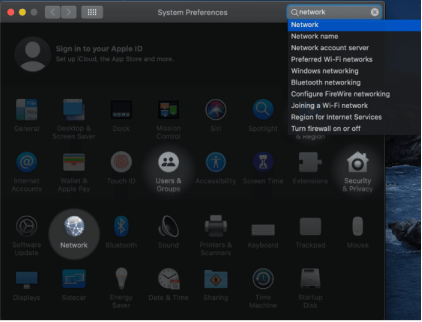
1.點擊左上角logo圖標，並從菜單中選擇“系統偏好設置”。

![1.png](https://server.711proxy.com/static/ueditor/1728634023763694.png)

2.點擊“網絡”設置。

<figure><img src="https://server.711proxy.com/static/ueditor/1728634034821452.png" alt=""><figcaption></figcaption></figure>

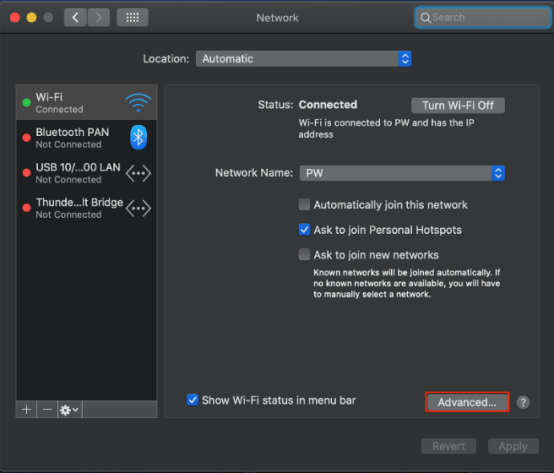
3.點擊窗口右下角“高級”按鈕。

<figure><img src="https://server.711proxy.com/static/ueditor/1728634041819179.png" alt=""><figcaption></figcaption></figure>

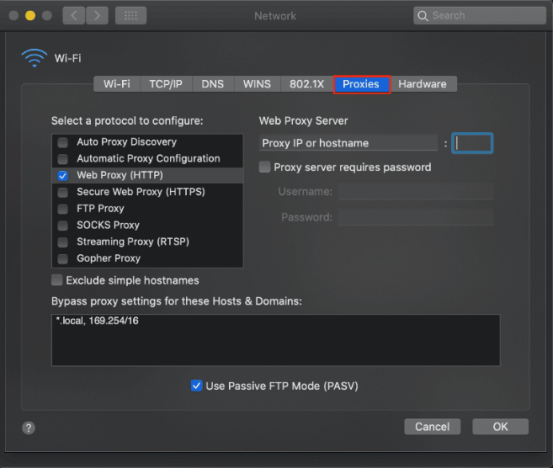
4.進入高級選項頁面後，點擊菜單欄中的“代理”標籤，在對應的頁面中，選擇協議類型，並輸入管理員或者代理服務提供的代理詳細信息，如服務器、端口，用戶名、密碼等。

<figure><img src="https://server.711proxy.com/static/ueditor/1728634049766592.png" alt=""><figcaption></figcaption></figure>

5.輸入代理所需的信息後，點擊“確定”保存更改。

6.通過瀏覽器檢測您的IP，當前IP地址和代理IP一致，則表示代理設置成功。

通過以上步驟，你成功完成了Mac和代理的集成，為網絡連接提供了更加安全和靈活的選項。


---

# Agent Instructions: Querying This Documentation

If you need additional information that is not directly available in this page, you can query the documentation dynamically by asking a question.

Perform an HTTP GET request on the current page URL with the `ask` query parameter:

```
GET https://docs.711proxy.com/cn/di-san-fang-ji-cheng/cao-zuo-xi-tong/mac.md?ask=<question>
```

The question should be specific, self-contained, and written in natural language.
The response will contain a direct answer to the question and relevant excerpts and sources from the documentation.

Use this mechanism when the answer is not explicitly present in the current page, you need clarification or additional context, or you want to retrieve related documentation sections.