> For the complete documentation index, see [llms.txt](https://docs.711proxy.com/llms.txt). Markdown versions of documentation pages are available by appending `.md` to page URLs; this page is available as [Markdown](https://docs.711proxy.com/proxies/unlimited-proxies-by-port/how-to-use-unlimited-proxies-by-port-of-711proxy.md).
# How to use Unlimited Proxies - By Port of 711Proxy?
We support residential proxy authentication via API (IP whitelist) or username/password. You can refer to the authentication method documentation to familiarize yourself with the concept.
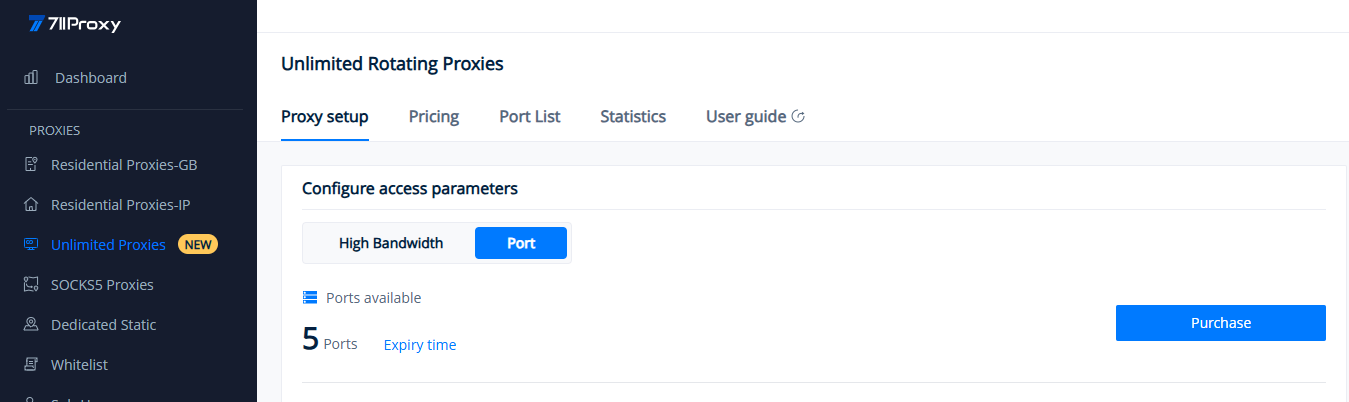
To configure the proxy, navigate to Unlimited Proxies > Proxy setup> Port section in the dashboard. Here, your current port quantity and expiration time are displayed.
Next, we will guide you through the proxy configuration methods for both API (IP whitelist) and username/password with detailed screenshots and clear instructions.
### API: Obtain Host:Port via Whitelist Authentication
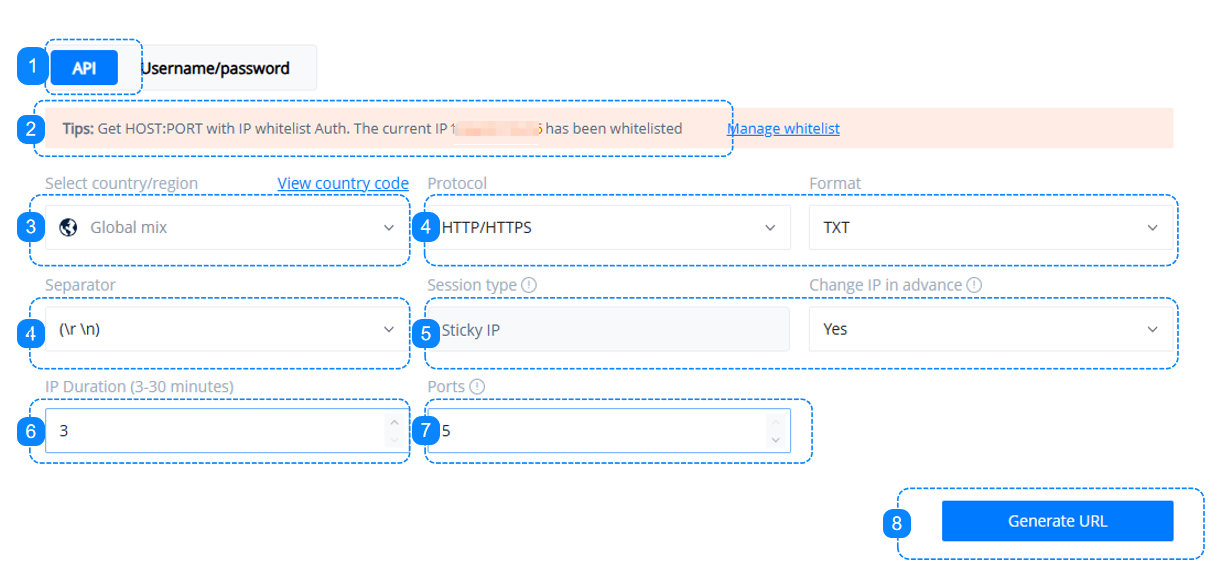
1. Click into the "API" dashboard to configure the access parameters.
2. Add the IP addresses that will access the proxy service to the whitelist. You can refer to the quick guide for IP whitelist.
3. Select the country/region for the proxy source.
4. Select the proxy protocol, data format, and separator, or keep the default options.
5. The default sticky IP setting cannot be adjusted. Selecting "Yes" will replace the IP based on its actual available time in advance, while selecting "No" will replace it after the sticky time expires.
6. "Sticky" retains an IP for up to 30 minutes. You can manually select a duration within the range of 3 to 30 minutes.
7. Choose the number of ports to generate based on the number of ports purchased.
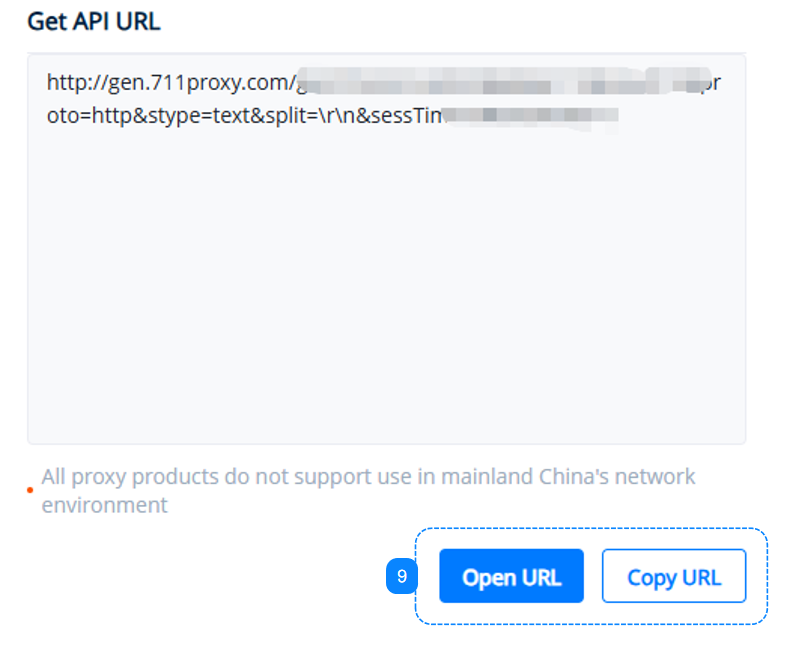
8. Click "Generate URL". Then, in the "Get API URL" section on the right, you can see specific information reflecting the above selections.
9. After generating the URL, you can choose to copy the URL or open it. Opening the link will display the generated proxy list. You can learn more on the API URL page.
{% hint style="warning" %}
The IP addresses in the list are proxy host addresses, not the actual proxy IPs used during operation.
{% endhint %}
### Username/Password: Obtain Proxy List via User Authentication
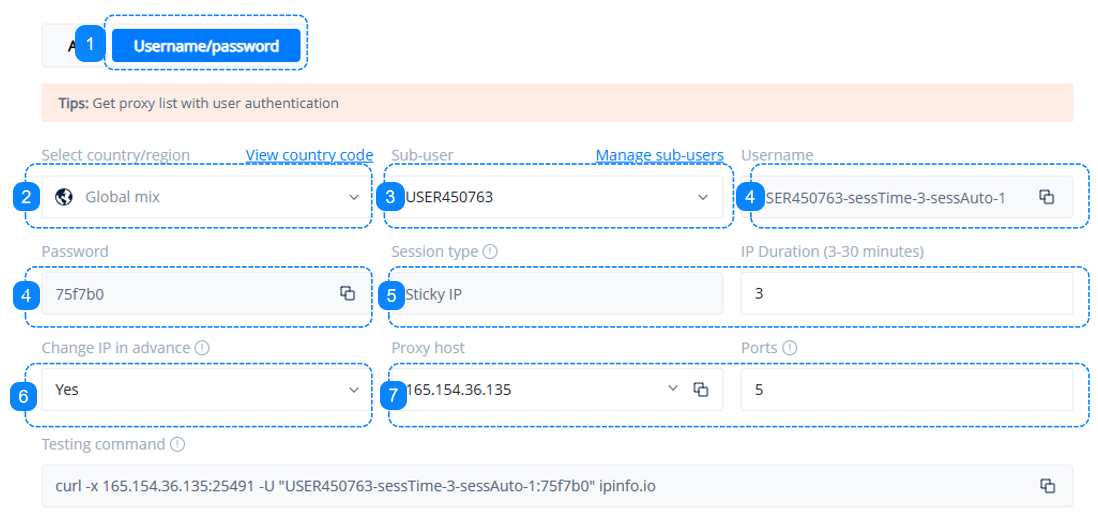
1. Click into the "Username/Password" dashboard to configure the access parameters.
2. Select the country/region for the proxy source.
3. Select the sub-user that needs to access the proxy, or click the "Sub-account Management" button to create a new one. You can refer to the quick guide for sub-user.
4. This area displays the username and password information corresponding to the selected sub-user, used as credentials for proxy access.
5. Default sticky IP session type. "Sticky" retains an IP for up to 30 minutes. You can manually select a duration within the range of 3 to 30 minutes.
6. Select "Yes" to replace the IP based on its actual available time in advance, or "No" to replace it after the sticky time expires.
7. Select the proxy host and the number of ports to generate. You can learn more on the Host and Port page.
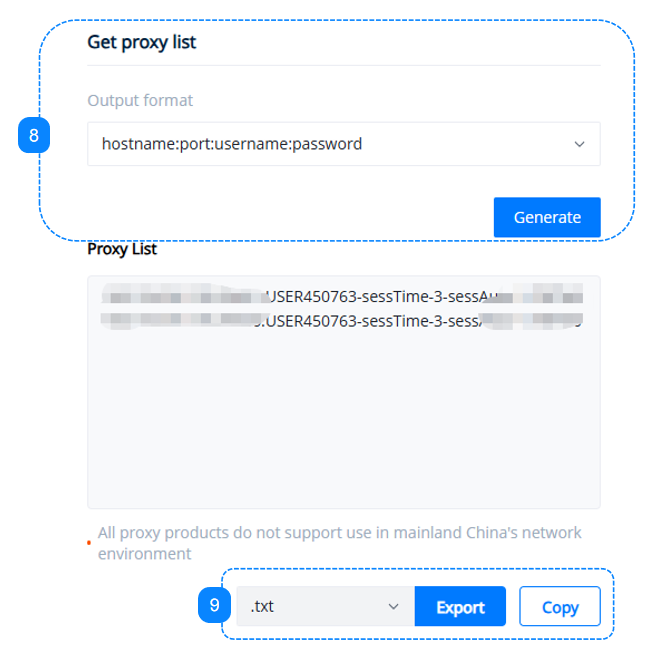
8. This is an essential step. In the "Get Proxy List" section on the right, after setting the number of ports as described above, click the "Generate" button. You can then see specific information reflecting the above selections in the proxy list. You can learn more on the Proxy String page.
9. Here, you can copy the created proxy list to the clipboard or download it as a .TXT or .CSV file. You can apply this to any application or tool, and then you can start using the proxies.
{% hint style="warning" %}
When setting up your proxies on a browser extension, it is recommended to use the HTTP protocol, rather than SOCKS5.
{% endhint %}
{% hint style="warning" %}
The anti-detect browser can support HTTP or SOCKS5 protocols.
{% endhint %}
If you need more information on proxy integration with browsers, proxy managers, tools, etc., please refer to the quick guides in the [Integrations](/third-party-integration/anti-detect-browser.md) section.